Skip to content
Brevity
ExploreToolsModelsBlogPricing
Log in
Start creating
Models/Vidu Q3 Turbo

ShengShu · Vidu

Vidu Q3 Turbo

Iterate quickly across vertical, square, and landscape scenes with precise whole-second timing and text or image input.

Create with Vidu Q3 Turbo

Generator setup

Create with Vidu Q3 Turbo

Input

One clear visual beat works best.125/2000

Studio composes model-valid scenes to reach this target.

No credits are used until you review and generate in the Studio.

Model showcase

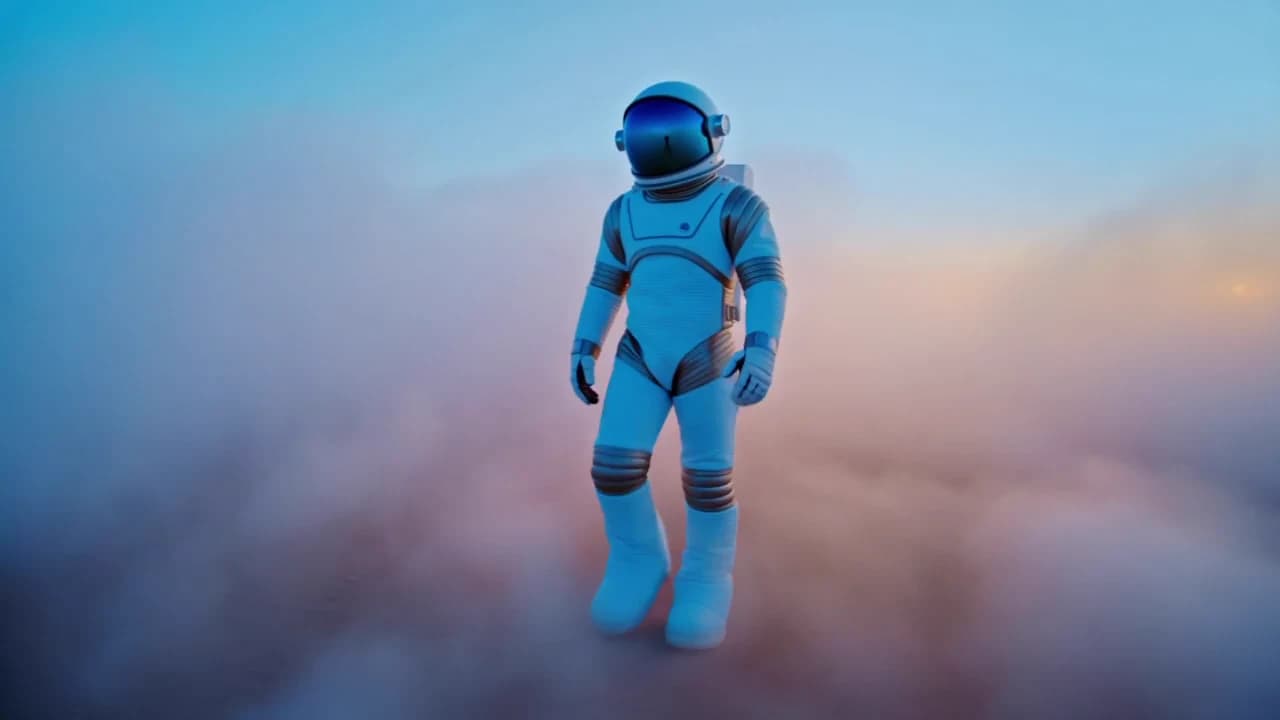
An astronaut walking through a pastel cloudscape

Scene output
1080p
Scene length
1–16 seconds
Formats
Vertical, square, landscape
Inputs
Text or image

A closer look

Motion, frame by frame.

Selected frames from the Vidu Q3 Turbo showcase reveal the movement, texture, and composition inside one scene.

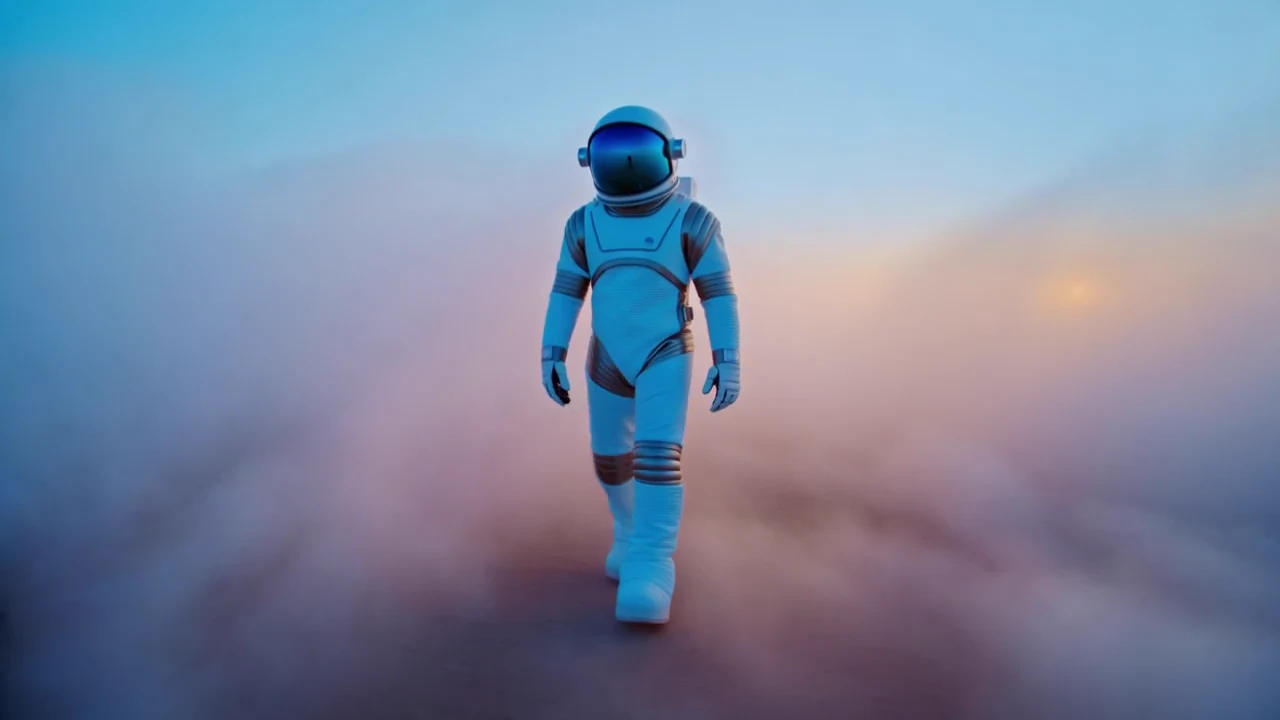
Astronaut emerging through blue and pink clouds
Astronaut walking toward camera in a cloudscape
Astronaut continuing through luminous mist

Key features

What Vidu Q3 Turbo brings to the cut.

01

Second-by-second timing

Choose any whole-second scene length from one through sixteen seconds.

02

Three production formats

Create vertical, square, or landscape footage with the same model.

03

Built for iteration

Turbo is positioned for quick visual exploration and timing changes.

04

Reference-led starts

Use a supplied image when the subject and palette should stay anchored.

How to use Vidu Q3 Turbo

From direction to a reviewable cut.

  1. 01

    Describe one visual beat

    Name the subject, action, setting, camera move, and light in one compact direction.

  2. 02

    Choose the production frame

    Set text or image input, the output ratio, and a target length for the finished video.

  3. 03

    Review it in the Studio

    Continue with your choices attached, then confirm the complete edit before spending credits.

Direction notes

Three ways to get a stronger first pass.

  1. 01

    Use short scenes for single gestures and longer timing for travel through space.

  2. 02

    Keep a centered subject when adapting the same idea across three formats.

  3. 03

    Change one prompt variable at a time when comparing iterations.

FAQs

Before you create.

Yes. Choose Image to video here, then attach the actual reference in the Studio after the handoff.

Ready when you are

Put Vidu Q3 Turbo into motion.

Prepare the direction here, then keep control of the brief, media, cost, and final generation inside the Studio.

Create with Vidu Q3 Turbo
Brevity

Make the video you have in mind.

Start creating

Product

  • Explore videos
  • AI video tools
  • AI video models
  • AI video field guide
  • Pricing
  • Open studio

Popular tools

  • Text to video
  • Image to video
  • Music video generator
  • Product video generator
  • Browse every tool

Company & legal

  • About Brevity
  • Contact
  • Affiliates
  • Privacy policy
  • Terms of service
© 2026 Brevity AIPrivacy policyTerms
Billing by Stripe Managed Payments · EU VAT handled